Part D — Allocator
Allocator is the deploy tier: everything in Operator, plus at-publish webhooks, Allocator forensics where enabled, and native brokerage automation on your account — under explicit permission modes and live gates.
Allocator automation is Available for entitled Allocator accounts (Alpaca or Coinbase Advanced Trade, one venue per book). Connecting broker keys never starts live trading by itself — live routing requires your permission mode and all safety gates in D.12. Begin in Manual Review with live submission off and the kill switch engaged.
SagaHalla does not custody your assets. Funds stay at your broker.
D.1 Who Allocator is for
Choose Allocator when you want to:
- Receive decisions at publish in-app and on webhooks
- Connect a supported broker (Alpaca or Coinbase) for automation on your account — one venue per SagaHalla book
- Use Manual Review (default) or Standing Instruction (advanced opt-in) for how orders are authorized
- Access Allocator forensics (sizing breakdown, intelligence narrative) where the product surfaces them
Allocator is not a managed account, robo-adviser, or suitability service. You remain responsible for instruments, rules, thresholds, sizing, exposure limits, and permissions you choose.
D.2 At-publish cadence & decision webhooks
On Allocator, both in-app Decisions and webhooks use the latest published closed bar (at publish) — still end-of-day, not intraday.
| Surface | Allocator |
|---|---|
| Markets / Decisions | At publish |
| Decision webhooks | At publish |
| Brokerage automation | At publish (only if live gates allow) |
Operator (Part C) has the same in-app timing but no webhooks. See A.2.
Deep schema, code samples, and retry details: Webhook integration guide (in-app: Settings → Webhooks → Integration guide).
D.2.1 Decision webhooks overview
Decision webhooks POST a signed JSON decision artifact to a URL you register.
- Carry decisions only — not trade fills, broker confirmations, or intraday ticks
- Allocator cadence: at publish (same closed bar as in-app Decisions)
- Formats:
standard(notification / workflow) and, when enabled for your account,tradingview(execution-oriented; see D.2.6) - Entitlement: Allocator (
quant) only — Operator does not include webhooks
| Area | Availability |
|---|---|
| Self-serve setup (create, test, delivery log, rotate secret) | Available in Settings → Webhooks (Allocator) |
| Production webhook delivery | Available — schema, cadence, and retry details are in the Integration guide |
D.2.2 Create / test / delivery log / rotate secret
- Go to Settings → Decision webhooks (Allocator entitlement required).
- Accept the one-time webhook general acknowledgment if prompted.
- Create webhook: name, HTTPS callback URL, events, asset filter, and format.
- Copy the signing secret — shown once at creation.
- Send test and confirm a
POSTarrives. - Open the delivery log for status codes and truncated errors.
- Rotate secret when needed — update your verifier immediately.
Limits: up to 10 webhooks per account (see integration guide if this changes).
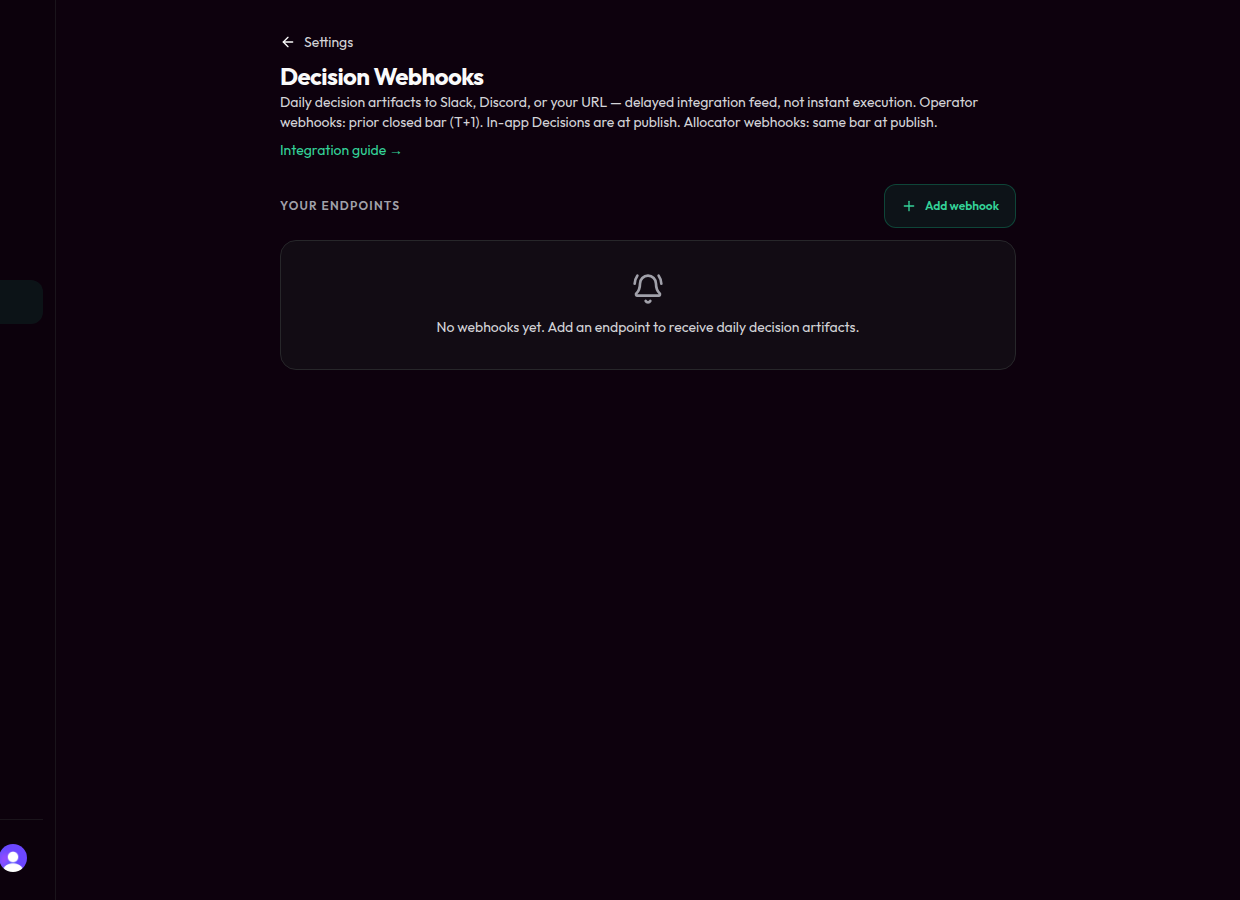
Decision Webhooks — empty endpoints after the page unlocks (Allocator or live-capital allowlist).
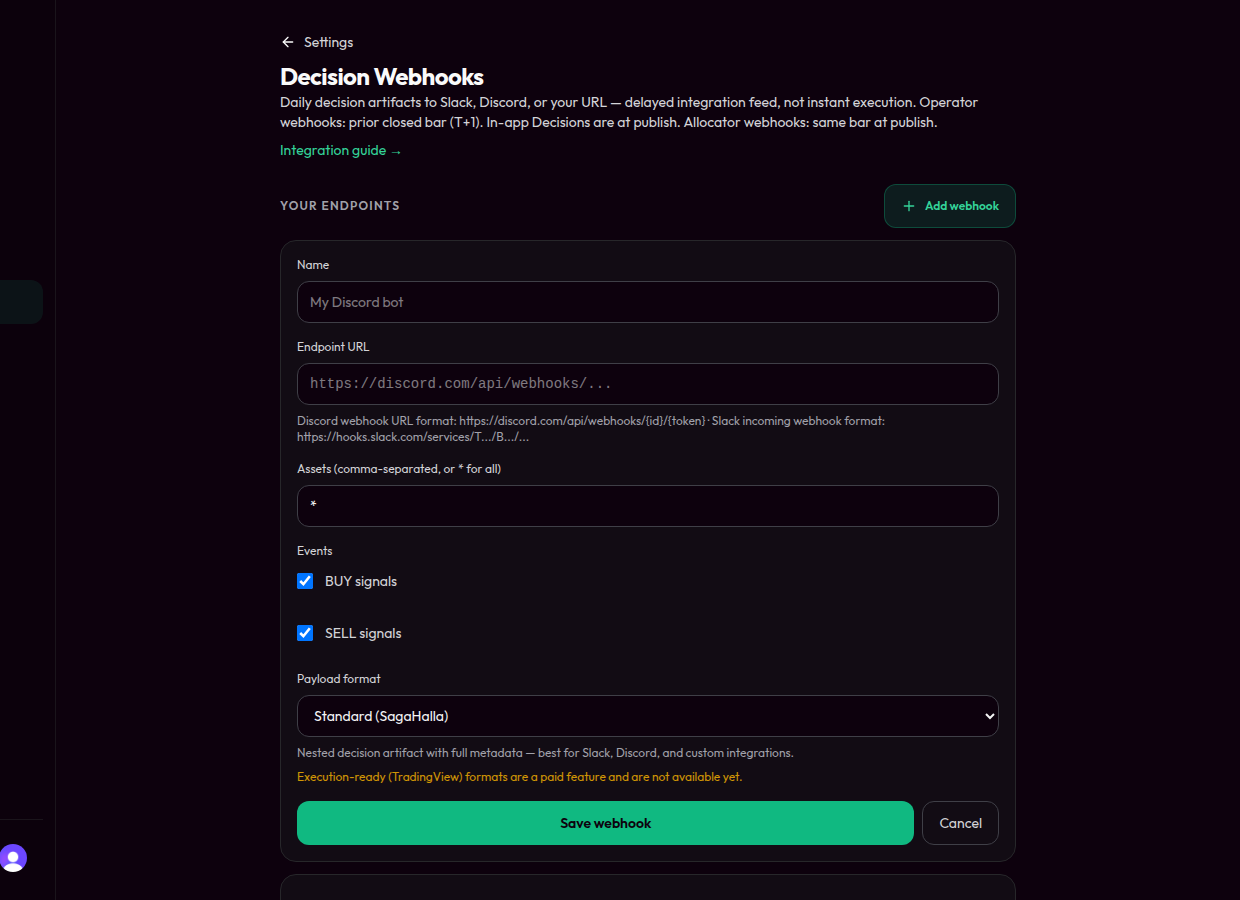
Create webhook — name, HTTPS URL, events, asset filter, and payload format. Delivery log appears on each saved endpoint.
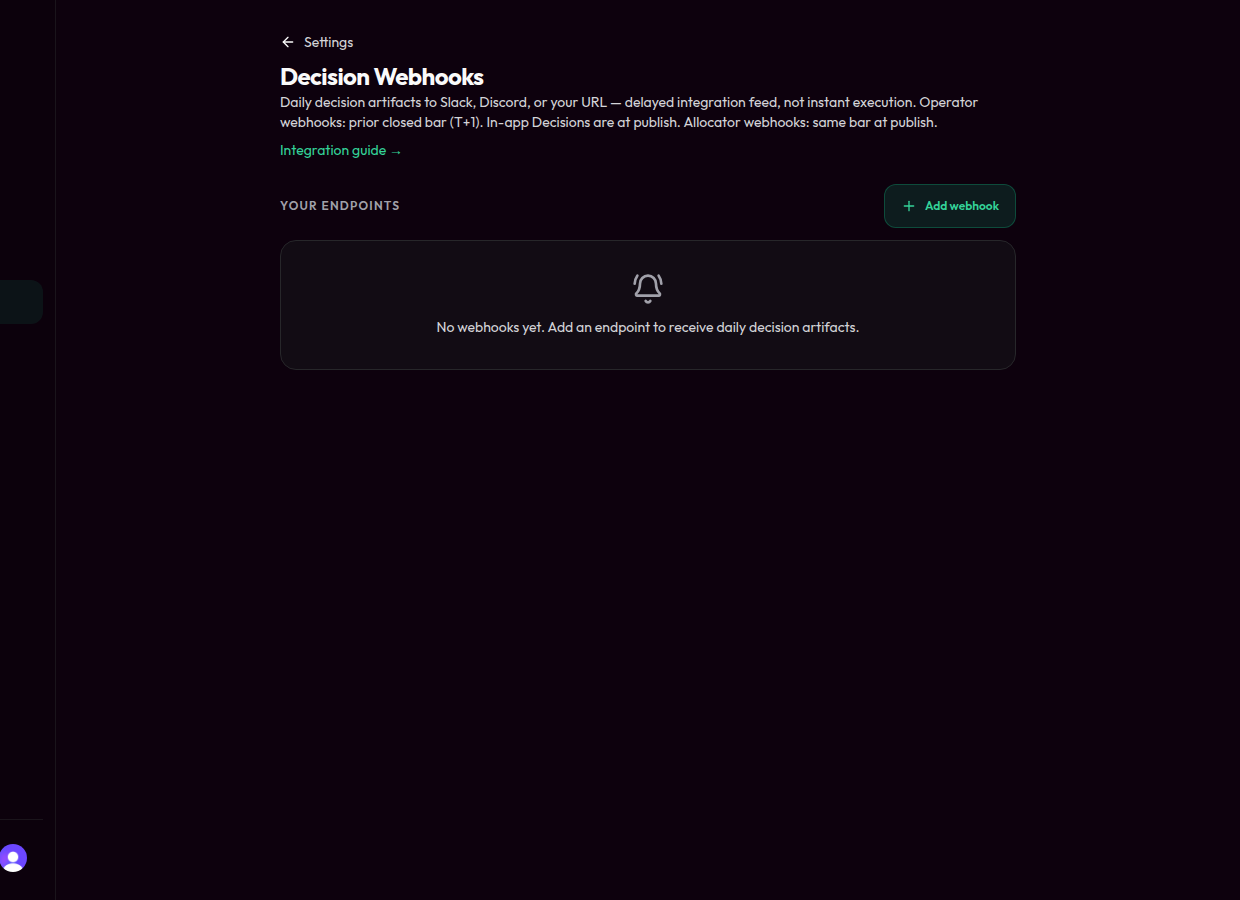
Decision Webhooks — same empty list until an endpoint exists; open Show deliveries on a saved webhook for the log.
D.2.3 Signature verification (HMAC concept)
Every delivery includes signature headers. Verify with a constant-time
comparison. Prefer Standard Webhooks headers (webhook-id, webhook-timestamp,
webhook-signature); legacy X-Saga-Signature may also be sent. Full
algorithms: Webhook integration guide.
D.2.4 Retries, duplicates, stale signals
| Topic | Behavior |
|---|---|
| Retries | Failed deliveries retry with backoff; success = HTTP 2xx |
| Duplicates | Design receivers to be idempotent (key on webhook id) |
| Stale signals | At publish is still EOD — your automation and broker add lag |
| Outages | Check the delivery log; do not invent fills |
D.2.5 Notification & workflow providers
Verify first, then transform for Slack, Discord, Pipedream, n8n, Make, Zapier, or your own HTTPS endpoint. Raw SagaHalla JSON is not a Slack/Discord message shape — add a transform step.
D.2.6 Execution-oriented formats (TradingView-compatible)
When enabled, tradingview format targets execution receivers (TradersPost,
SignalStack, 3Commas). Requires use-and-risk acknowledgment (D.2.7).
D.2.7 Information-only / use-and-risk posture
Decision webhooks are an information feed, not a trade-execution guarantee. If you automate orders off webhooks, you accept timing lag, unknown slippage, and signal ↔ portfolio misalignment. For native brokerage controls, use Allocator automation (D.12+) when live gates allow.
D.2.8 Kill switches / pause paths (webhooks)
Disable or delete a webhook, rotate secrets, or turn off your automation provider on your side. Allocator brokerage kill switches are in D.12+.
D.3 Screening vs allocation vs operation
Keep three jobs distinct:
| Job | Meaning |
|---|---|
| Screening | Which instruments / structures are admissible under the Oracle’s structural rules |
| Allocation | How weight / sizing intent is expressed for an admissible set under your constraints |
| Operation | How (and whether) that intent becomes orders on your broker under your permission mode and live gates |
SagaHalla’s analytics inform screening and allocation context. Operation requires your authorization mode and the safety model in D.12. Do not treat a screen or a decision artifact as an order.
D.4 Structural admissibility & pillar interpretation
Structural admissibility is the Oracle’s way of saying whether a structure passes its integrity / pillar checks for the closed bar — not whether it is “good for you.” Pillars and related scores are general structural analytics (the non-advisory posture in A.10 applies), and passing or failing admissibility does not by itself place a trade.
Read pillar / admissibility context on Decisions explainability as why the Oracle’s machinery classified the bar that way — then apply your own process.
D.5 Screening methodology & portfolio construction
At a high level:
- The Oracle evaluates supported instruments on closed bars
- Structural screens and portfolio construction rules produce decision / proposal context
- Your book’s constraints and permission mode determine what can be routed
Your day-to-day loop: understand the decision → authorize per your mode → observe gates and broker results.
D.6 Policy selection, constraints, risk budgets, benchmarks
You direct the book. Where the product exposes them, you (not SagaHalla as adviser) select or accept:
- Instruments and universes you allow
- Constraints, exposure limits, and stop / pause conditions
- Risk budgets and benchmark references you care about for your monitoring
SagaHalla does not certify that your policy is suitable. Change or revoke permissions when your policy changes.
D.7 Mandate versioning & rebalancing
A mandate is your standing configuration for how automation may act — instruments, limits, and permission mode — versioned over time so you can see what was in force when a decision was authorized.
- Rebalancing follows closed-bar decisions and your authorization mode
- Changing a mandate does not rewrite history; it changes what may happen next
- Pause / kill switch (D.12) stops routing without necessarily deleting the mandate
Trust the labels shown in-app for mandate status.
D.8 Native brokerage automation overview
Native automation means SagaHalla may route your preconfigured order instructions to your connected broker API when your permission mode and live gates allow — at at-publish timing.
| Point | Rule |
|---|---|
| Custody | Broker holds funds; SagaHalla does not |
| Keys | Trading-scoped API keys in the broker vault (AES-256-GCM with a per-row DEK); never shown back; customer keys are vault-only (not customer .env files) |
| Default | Live submission off; kill switch engaged (safe defaults) |
| Permission | Manual Review by default; Standing Instruction only with acknowledgment |
| Fail-closed | Without a valid vault connection for the book’s venue, live routing does not fall back to process environment keys |
This is distinct from self-directed webhook execution (D.2.6–D.2.7), where you wire a third-party receiver. (Treasury / institutional ops may use separate operator tooling; customers never configure broker secrets via env files.)
| Area | Availability |
|---|---|
| Allocate UI (Alpaca or Coinbase connect, modes, approval queue, kill / live controls) | Available for Allocator entitlement |
| Live order routing | Available only when all live gates clear (D.12). Connection and UI visibility never equal live trading |
Active book on Allocate
Allocate reads the active book from Portfolio scope (cookie
sh_active_book). When a book is selected, the header shows Active book:
{name} and Change on Portfolio — switch books on Portfolio before
connecting keys or changing live gates. With no book selected, Allocate shows a
hint to pick a connected book on Portfolio first.
D.9 Supported venues
Alpaca and Coinbase Advanced Trade are supported. Other venues remain Coming soon.
| Venue | Status | Notes |
|---|---|---|
| Alpaca | Available | Live or paper connect + automation when gates clear |
| Coinbase | Available | Advanced Trade; ECDSA PEM; Transfer disabled. Live keys only — no paper/sandbox connect path |
| Kraken | Coming soon | |
| Schwab | Coming soon | |
| Multi-venue on one book | Coming soon | One book ↔ one venue today |
You may create many SagaHalla books. Each book binds exactly one venue and exactly one broker account for that venue. Select the active book in Portfolio scope (BookSwitcher in the Portfolio scope panel — not the sidebar footer). Paper pilots in Settings (when offered) are Alpaca paper only, are sandbox-only, and are not Allocator live connect. Coinbase is a live-only connect and therefore an Allocator path.
D.10 Connecting a broker (Alpaca or Coinbase)
Open and fund your account on the broker’s site — the broker owns KYC and key management. Then connect for the selected book in Allocate (or Beta Integrations for Alpaca paper pilots). Connect panels name the target book in their header — confirm it matches the book you selected before pasting a secret. Connecting never starts live trading by itself (D.12).
Before you connect (checklist)
- You understand this is not custody or advice (A.10).
- You have trading-only API keys — never withdrawal / transfer-capable keys.
- You understand live routing remains off until all gates clear.
- You intend to begin in Manual Review.
- You know how to pause, disconnect, and rotate keys.
- The selected book’s bound venue matches the broker you are connecting.
Alpaca
| Step | Where | Rule |
|---|---|---|
| 1. Open / fund an Alpaca individual brokerage account | alpaca.markets | Complete Alpaca KYC on Alpaca’s site. |
| 2. Create trading-scoped API keys | Alpaca dashboard → API keys (Alpaca docs) | Enable trading. Disable withdrawal / transfer. SagaHalla never needs withdrawal access. Alpaca does not expose scopes via API — create trading-only keys yourself. |
| 3. Keep the secret offline | Your password manager | The secret is shown once in Alpaca; SagaHalla will never show it back after connect. |
Coinbase Advanced Trade
Create Coinbase API keys in a web browser — not the Coinbase mobile app. Coinbase does not expose full API-key management in the Coinbase app on phone or tablet. You do not need a laptop: Safari or Chrome on a phone or tablet can complete the flow if you stay in the browser.
| Step | Where | Rule |
|---|---|---|
| 1. Open Coinbase in a browser (not the app) | coinbase.com in Safari/Chrome | Complete Coinbase KYC on Coinbase’s website. Do not use the Coinbase app for key creation. |
| 2. Open the CDP API Keys dashboard | Type portal.cdp.coinbase.com/api-keys/secret in the address bar → Go | Manually type the address. Tapping a Coinbase link from search/mail/Messages can hand you into the installed Coinbase app via app-link association. |
| 3. Create a trade-only Secret API key | CDP → Secret API Keys → Create API key | View + Trade only. Transfer must be off (can_transfer=false). SagaHalla rejects transfer-capable keys at connect. |
| 4. Choose ECDSA (ES256) — not Ed25519 | Advanced Settings when creating the key | Paste the full multi-line PEM. Ed25519 keys are rejected (Coinbase App / Advanced Trade flow and SagaHalla accept ECDSA only). Keep the PEM in your password manager; SagaHalla never shows it back. |
If you are on a phone or tablet and the Coinbase app keeps opening
Works the same on iPhone / iPad and Android phones/tablets:
- Open a browser — Safari (iOS) or Chrome (Android; Safari/Chrome also fine on either).
- Tap the address bar and type
https://portal.cdp.coinbase.com/api-keys/secret(orhttps://www.coinbase.com) yourself — do not tap a Coinbase link from Google, email, Messages, or another app (App Links / Universal Links can hand you into the installed Coinbase app). - Sign in there. If the page looks mobile-only:
- iOS Safari: page menu → Request Desktop Website
- Android Chrome: ⋮ menu → Desktop site (or Request desktop site)
- If the browser still jumps to the Coinbase app, try a Private / Incognito tab and type the address again (Coinbase may ask you to reconfirm the device).
- Optional — turn off the app’s supported-links hijack (keeps Coinbase URLs in the browser even if you tap a link later):
- iPhone / iPad: Settings → Coinbase (or Settings → Apps → Coinbase) → Open Supported Links → Off (or Ask).
- Android: Settings → Apps → Coinbase → Open by default → turn off Open supported links (or choose Don’t open supported links / clear defaults). Menu labels vary slightly by Android version.
Onboarding summary: browser (not the Coinbase app) → create the API key → copy/paste credentials into SagaHalla Settings → Connect brokerage.
Do not paste withdrawal- or transfer-capable keys. If you already created broad keys, revoke them at the broker and mint trading-only keys.
In the SagaHalla app
Settings owns keys. Allocate owns arming.
- Open Settings → Connect brokerage (not Allocate) for live Alpaca or Coinbase keys, or Alpaca paper when the paper pilot is offered.
- Choose the venue chip (Alpaca · Live, Coinbase · Live, or Alpaca · Paper). Optional label defaults to the broker nickname.
- Enter credentials; acknowledge storage/validation / trade-only terms.
- Keys are validated and stored in the encrypted broker vault
(AES-256-GCM + per-row DEK) — never in the browser, never in a customer
.env, and never shown back after submit. SagaHalla creates the book and selects it. - Reconnect or disconnect under Settings → Your books. On Allocate, confirm Connected vs Armed, then manage live gates — connecting alone does not enable live routing.
Disconnect removes credentials from SagaHalla; rotate keys at the broker to invalidate them everywhere.
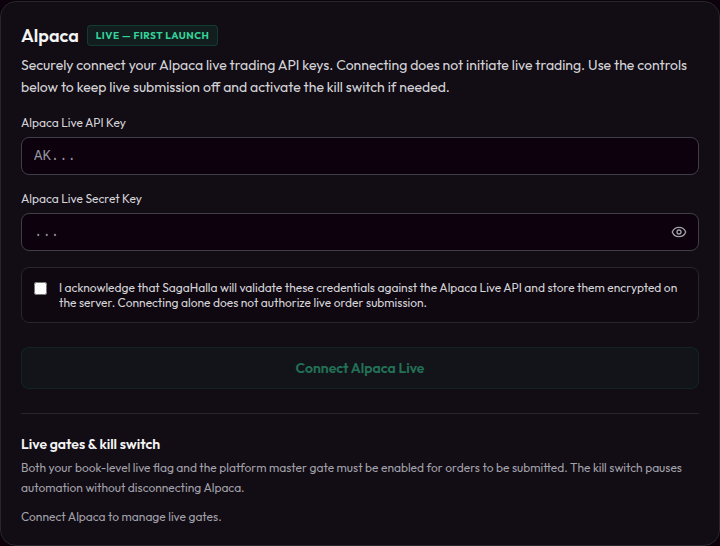
Settings → Connect brokerage — Alpaca live keys. Connecting vaults keys; it does not turn on live routing. Arm on Allocate next.
- Connection does not enable routing
- Alpaca key/secret fields (secret never shown back)
- Venue chips select Alpaca/Coinbase × Paper/Live
- Acknowledgment that connect ≠ live submission
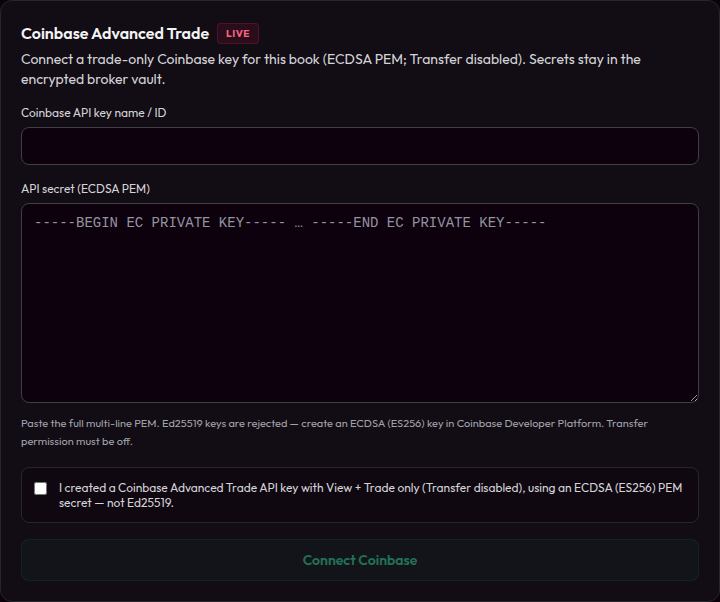
Settings → Connect brokerage — Coinbase Advanced Trade (trade-only ECDSA PEM; Transfer disabled). Same vault rules as Alpaca. Mint keys in a browser via CDP — not the Coinbase app.
- Keys create the book (Your basket / sim cannot hold vault keys)
- Paste full multi-line ECDSA PEM created in a browser (Ed25519 rejected; Coinbase app cannot create keys)
- Connect ≠ live submission — arm on Allocate
D.11 Platform license & execution authorization
Allocator has two commercial components — a recurring subscription and a one-time platform license (an activation filter for deployers, in addition to the monthly). Amounts are in the pricing table in A.3.
What unlocks what:
| Gate | Unlocks |
|---|---|
| Allocator entitlement (+ license when required) | Tier features and Allocate surfaces |
| Broker connect (Alpaca or Coinbase) | Credential vault entry for that book — not live routing |
| Execution mode | Manual Review vs Standing Instruction |
| Book live-submission intent | Your preference to allow live routing |
| Platform master live gate | SagaHalla-wide allow for live submission |
| Kill switch cleared | Automation not paused |
Checkout and license collection are on sagahalla.com/account and follow your onboarding agreement.
D.12 Going live: safety model & kill switches
Live routing requires all of the following (safe defaults in parentheses). If any one of these is false, live routing should not occur.
| # | Gate | Safe default |
|---|---|---|
| 1 | Valid vault live connection for the book’s venue (Alpaca or Coinbase) | Disconnected — fail-closed (no env-key fallback) |
| 2 | Execution mode set | Manual Review |
| 3 | Your book live submission intent | Off |
| 4 | Platform master live gate | May be off during platform maintenance |
| 5 | Kill switch | Engaged (paused) |
| Control | Effect |
|---|---|
| Turn live submission off | Stops new live intent without deleting keys |
| Engage kill switch | Pauses automation; connection can remain |
| Disconnect broker | Removes vault credentials for that book / venue |
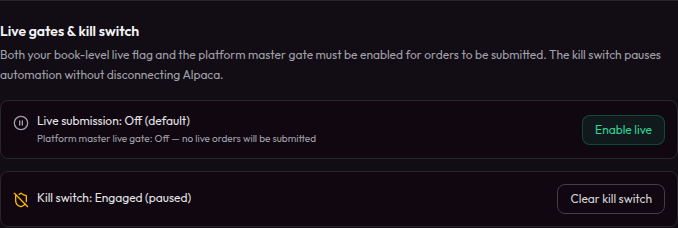
Live gates & kill switch — live submission off and kill switch engaged by default.
- Live submission: Off (default)
- Kill switch: Engaged (paused)
- Connection can remain while routing stays off
Execution mode & approval queue
No order is routed without an explicit permission mode that you select:
- Manual Review (default). SagaHalla alerts you when your configured rule condition is met. No order is routed unless you review and approve it — one at a time or all at once.
- Standing Instruction (advanced opt-in). You may authorize SagaHalla to route your preconfigured order instructions when your selected conditions are met — without per-trade Approve clicks. Open executor proposals for your live books are auto-approved under this mode; live gates in D.12 still apply. You remain responsible for the instruments, rules, thresholds, sizing, exposure limits, and permissions you choose, and you can pause, modify, or revoke authorization at any time.
Enabling Standing Instruction requires this acknowledgment:
I understand that SagaHalla is not recommending this trade. I selected the instrument, rule, threshold, sizing, exposure limit, and execution permission. Orders may execute automatically according to my standing instruction.
Connecting a brokerage or webhook alone does not start trading — live routing has additional explicit gates.
In Manual Review, use the Allocate pending trades queue to approve or reject proposals individually or all at once. Your approval records intent; orders still submit only when live gates allow.
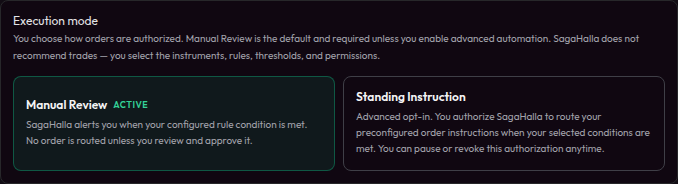
Execution mode — Manual Review is the default; Standing Instruction needs acknowledgment.
- Manual Review active (default)
- Standing Instruction requires explicit acknowledgment
- Mode choice ≠ live routing (gates in D.12 still apply)
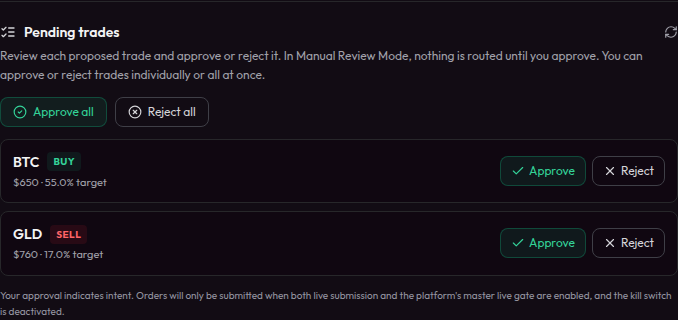
Approval queue — approve or reject pending trades in Manual Review.
- Per-trade approve / reject
- Approve-all / reject-all
- Approval records intent; live routing still needs cleared gates (D.12)
D.13 Day-to-day operation & reports
| Activity | Where |
|---|---|
| Daily decisions / explainability | Oracle Proof → Decisions (at publish) |
| Pending authorizations | Allocate → pending trades (Manual Review) |
| Connection / gates / kill switch | Allocate |
| Webhooks (at publish) | Settings → Webhooks |
| Forensics (sizing / narrative) | Decisions trace / Allocate forensics entry points when enabled |
Pause anytime via kill switch or live-off. Re-enable only when you intend live routing again. Treat your broker statements as the custody record of truth.
D.14 Automation risks specific to live capital
Beyond webhook self-execution risks (D.2.7), live Allocator automation adds:
| Risk | Why it matters |
|---|---|
| Real capital | Fills debit/credit your broker account |
| Gate misconfiguration | Live-on + cleared kill switch + master gate = routing may proceed per your mode |
| Standing Instruction | Orders may route without per-trade clicks once conditions you set are met |
| Broker / API failures | Rejects, partial fills, outages — SagaHalla does not guarantee fills |
| Mandate drift | Stale limits or forgotten Standing Instruction after you change intent |
| Key scope mistakes | Never grant withdrawal permissions on API keys |
You can pause or revoke at any time. If unsure, keep Manual Review, live submission off, and kill switch engaged.