Part A — Shared (all signed-in users)
These sections apply to every signed-in user. Tier-specific depth follows in Parts B–D.
A.1 What a decision is (and is not)
A SagaHalla decision is a structured, end-of-day artifact for a supported instrument on a closed daily bar. It reflects the Oracle’s consensus — the combined view of its models for that bar — and typically includes an action context (buy / sell / hold framing), explainability (why the Oracle reached that state), and related portfolio or proposal context where your entitlement allows.
A decision is not:
- a real-time or intraday trade alert;
- a personalized recommendation for your account;
- investment advice, a suitability determination, or a promise of profit;
- by itself an order at your broker (orders require your permission mode and additional live gates — see Part D).
Treat decisions as general structural analytics you may use in your own process — not as instructions SagaHalla is giving you to trade.
A.2 End-of-day / closed-bar timing model
SagaHalla decisions are end-of-day / closed-bar artifacts, not real-time trade alerts. A decision reflects a completed bar; it is not a live tick or an instruction to act immediately.
Delivery cadence depends on your entitlement and surface:
| Entitlement | In-app decisions (Markets / Decisions) | Webhook delivery |
|---|---|---|
| Validator | 5 trading days (one week; same as Public Proof) | — |
| Operator | At publish (latest closed bar) | — |
| Allocator | At publish | At publish |
Operator is manual same-bar information in-app — no outbound webhooks. Allocator adds at-publish webhooks and (when gated) native brokerage automation.
This is a delayed feed, not an execution guarantee. Market data, paper fills, consensus state, and webhook delivery can be delayed, retried, or occasionally skipped.
Check freshness before acting. Use the latest publish time and any app health / freshness indicators shown in the product. If data looks stale, pause interpretation and contact support rather than assuming the last value is current.
A.3 Plans at a glance
| Plan | Who it's for | Core value | Decision timing (summary) |
|---|---|---|---|
| Validator | Evaluate the Oracle | Paper proof, full decision explainability | In-app: 5 trading days (one week) |
| Operator | Watch and trade by hand | Everything in Validator + at-publish in-app decisions + Fill Ledger / Open Proposals + paper history replay | In-app: at publish |
| Allocator | Integrate or deploy capital (when gated) | Everything in Operator + at-publish webhooks + native brokerage automation after live gates | In-app and webhooks: at publish |
Pricing:
| Plan | Price |
|---|---|
| Validator | $0 |
| Operator | $99 / mo (monthly only) |
| Allocator | $199 / mo + $3,500 one-time platform license or $5,410.40 annual prepay |
Annual prepay applies 20% off the subscription portion only ($3,500 license + $1,910.40/year access = $5,410.40).
Paid plans are on sagahalla.com/account. What the app shows for your current plan is authoritative for entitlements.
What the app shows for your current plan is authoritative for entitlements and license terms. Pay on sagahalla.com/account.
A.4 App navigation & Markets
Signed-in navigation is four top-level tabs: Oracle Proof | Portfolio |
Allocate | Settings. There is no top-level Decisions tab — the
decision list, Markets scan, and per-asset explainability live under Oracle
Proof (/, /decisions, /proof/*).
Markets is the scan-the-book lens — the Oracle’s current view across supported assets with buy / sell / hold markers at your tier’s in-app timing (see A.2). It is not a separate destination: the Markets scan and the per-asset explainability trace are two views of the same decision surface under Oracle Proof.
Use the list to scan the instruments the Oracle covers, then open one to reach its explainability trace (A.6). Neither view places trades, and neither knows your personal portfolio unless you are on Portfolio or a connected book (A.9).
The Decisions list below is this scan lens in the current app.
A.5 Core surfaces: Oracle Proof
Oracle Proof is the validation / performance surface for the Oracle’s paper reference book — the Fresh $100K Book (the institutional proof track), not your personal brokerage.
What to look for:
- Headline metrics for the Fresh $100K Book
- Equity / activity context that shows how the strategy has behaved in paper
- Freshness / which closed bar the view reflects
Oracle Proof answers “is the Oracle’s paper track credible and current?” — not “what should I buy today?”
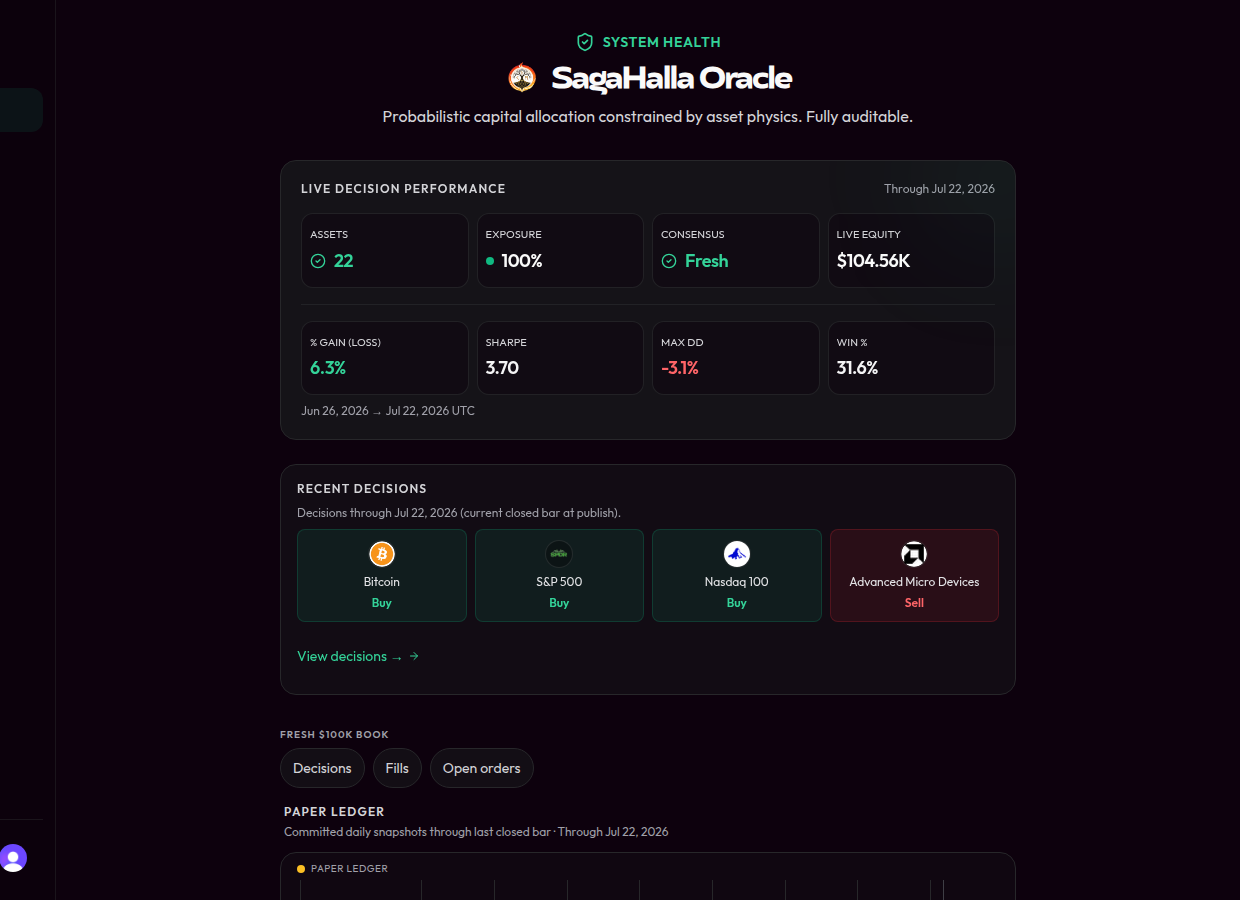
Oracle Proof (app home) — headline metrics through the current closed bar.
- Headline metrics for the institutional ledger
- Freshness / which closed bar the view reflects
- Ledger lens — institutional validation track, not your brokerage
Common confusion: Oracle Proof and Fill Ledger show SagaHalla’s institutional paper validation book, not your own brokerage account or a promise of your results.
A.6 Core surfaces: Decisions & explainability
Under Oracle Proof, Decisions is where you open a specific buy / sell /
hold item and read why the Oracle reached that state: confidence,
conviction, thresholds, constraints, and supporting context (the
explainability trace). Reach it from the Oracle Proof home or the /decisions
list. Portfolio does not link into Decisions — book equity and holdings stay
on the Portfolio tab (A.9).
- Timing follows your entitlement (A.2).
- A timing / freshness notice in the app tells you which closed bar you are seeing.
- Explainability is structural context — not a recommendation tailored to you.
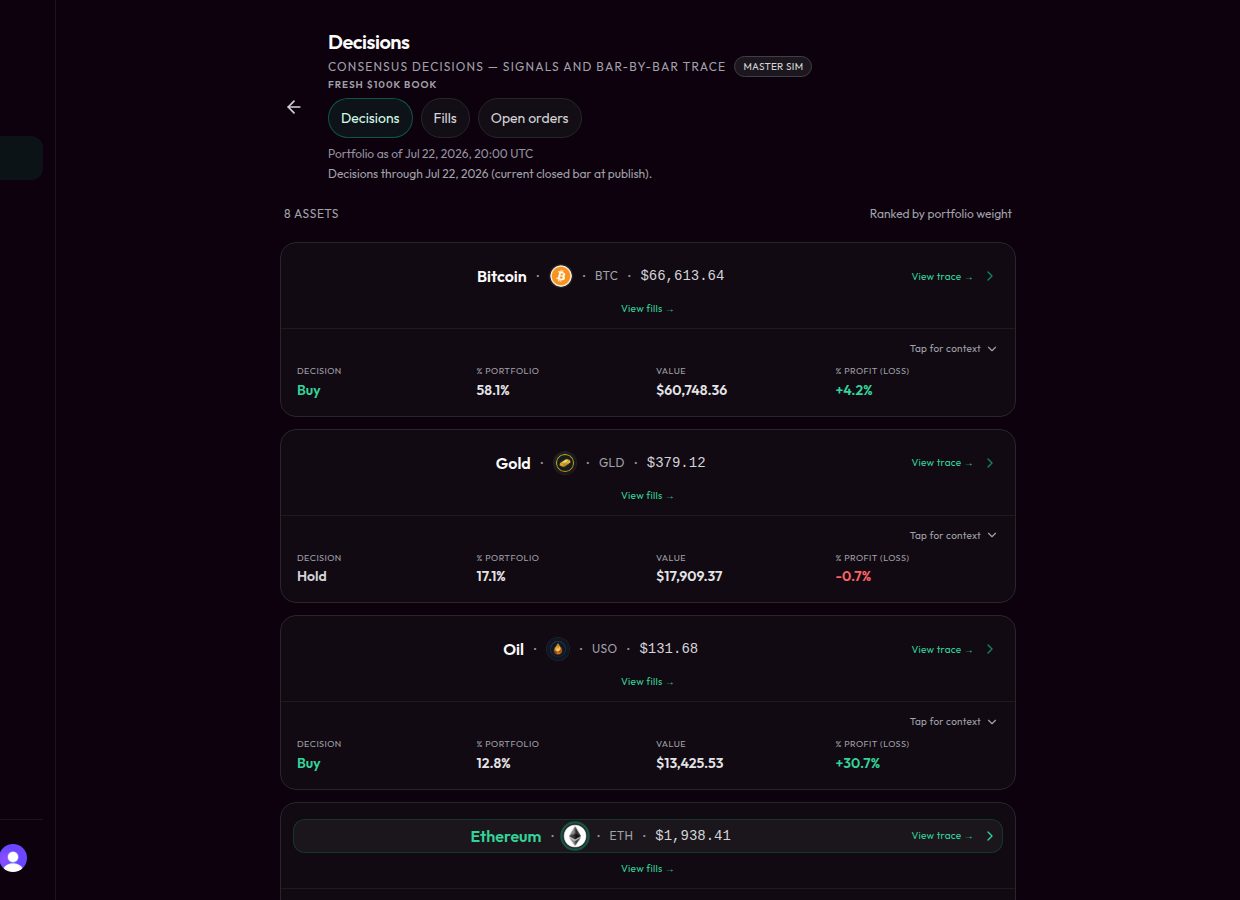
Decisions — open an asset for the explainability trace.
- Freshness banner / closed-bar label (trust this over assumptions)
- Consensus action (buy / hold / sell) on each asset
- View trace — open explainability; timing follows your entitlement (A.2)
A.7 Core surfaces: Open Proposals
Open Proposals shows transient paper proposals still waiting — intended trades that have not yet filled or expired.
- Available on Operator and Allocator.
- On Oracle Proof, the default lens is the institutional Fresh paper book (not your brokerage blotter).
- From Portfolio, the Open proposals lens opens the same route family scoped to the active connected customer book (A.9) — distinct from the institutional Fresh ledger on Proof.
- On Allocator with Manual Review Mode, a related pending trades queue on Allocate is where you approve or reject proposals for your book (Part D).
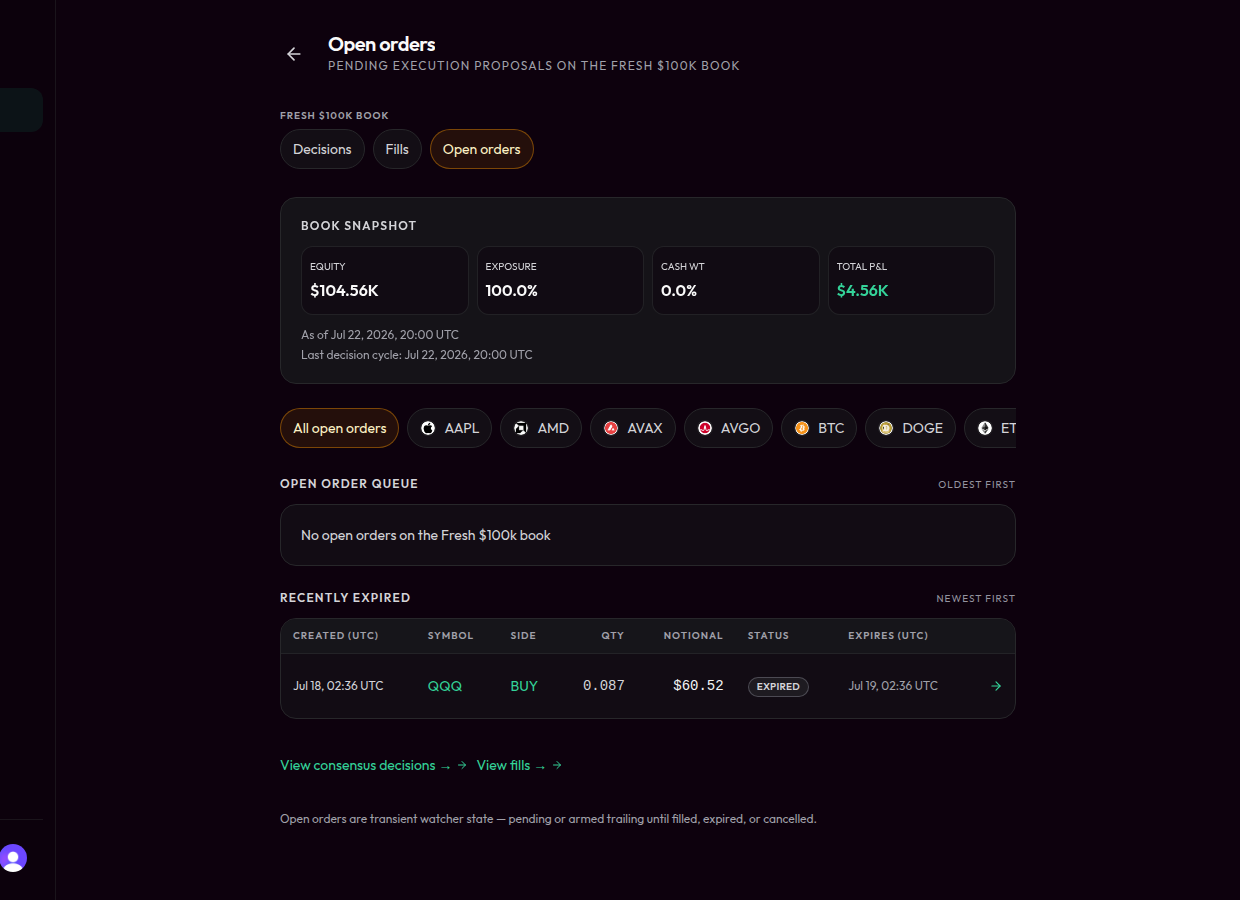
Open orders — pending proposals on the institutional ledger, not your broker blotter.
A.8 Core surfaces: Fill Ledger
Fill Ledger shows fills, sizes, and related receipts for the active book scope.
- Available on Operator and Allocator.
- On Oracle Proof, the default lens is the institutional Fresh paper book.
- From Portfolio, the Fills lens opens the same route family scoped to the active connected customer book (A.9) — distinct from the institutional Fresh ledger on Proof.
- Use it to distinguish what executed (Fill Ledger) from what is still waiting (Open Proposals).
- It is not a statement from your live broker unless you are viewing a connected live book’s scoped ledger.
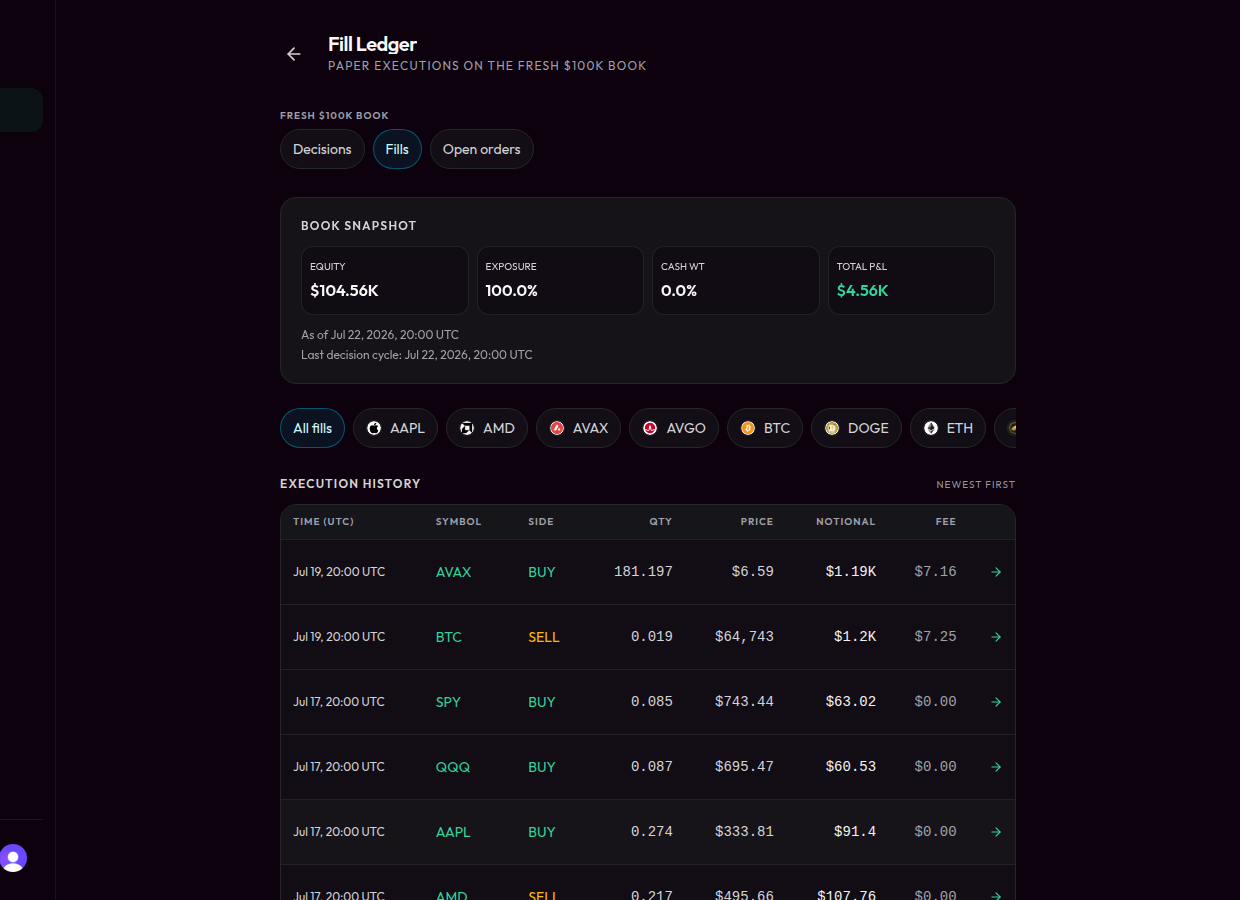
Fill Ledger — what executed on the institutional ledger.
A.9 Portfolio & paper sandbox overview
Portfolio (/portfolio) is where you manage your books — the sim basket
and connected customer books — separate from the institutional Fresh track on
Oracle Proof (A.5). Decisions and explainability stay under Proof (A.6);
Portfolio does not deep-link into /decisions or the Oracle Proof home.
| Surface | Scope | What it shows |
|---|---|---|
| Oracle Proof | Fresh $100K Book (institutional) | Validation metrics, Markets / Decisions, Fill Ledger / Open Proposals on the house book |
| Portfolio | Your sim basket or a connected customer book | Equity curve, holdings; for a connected book, lens pills to Open proposals and Fills (book-scoped) |
Book scope lives on Portfolio, not in the global sidebar. The Portfolio
scope panel (PortfolioBookPanel) includes BookSwitcher — choose
Your basket (sim) or a customer book. Each customer book binds exactly
one venue (Alpaca or Coinbase). The active book is stored in the
sh_active_book cookie; with no cookie, Portfolio defaults to your sim basket.
Lens pills on Portfolio are Open proposals and Fills only, and only when a connected book is active (book-scoped routes; see A.7 / A.8). The sim basket keeps those pills disabled — there is no blotter without a connected book. There is no Decisions / Oracle Proof lens on Portfolio.
Compose (/portfolio/compose) builds your hypothetical $10k sim basket.
It is hidden or blocked when a connected book is active — connected books
use broker keys on Allocate, not Compose.
Capabilities by tier:
| Capability | Validator | Operator / Allocator |
|---|---|---|
| Portfolio / sim basket | Available — BookSwitcher in Portfolio scope panel | Available |
| Connected customer books | Available — one venue per book | Available |
| Forward observation | ✅ Watch the selected book go forward | ✅ |
| Full history replay | ❌ | ✅ |
| Fill Ledger / Open Proposals (institutional book) | ❌ | ✅ |
Paper is simulated unless you connect vault keys for a customer book. Nothing in the sim basket places a real brokerage order. Paper connections in Settings → Connect brokerage (when offered) are Alpaca paper only — Coinbase has no paper/sandbox connect path today — and are sandbox-only and distinct from Allocator live broker connect. New books are created when you connect keys; Portfolio BookSwitcher switches the active book; Settings → Your books renames, archives, reconnects, or disconnects. Master Sim / institutional matrix books hold no customer vault keys.
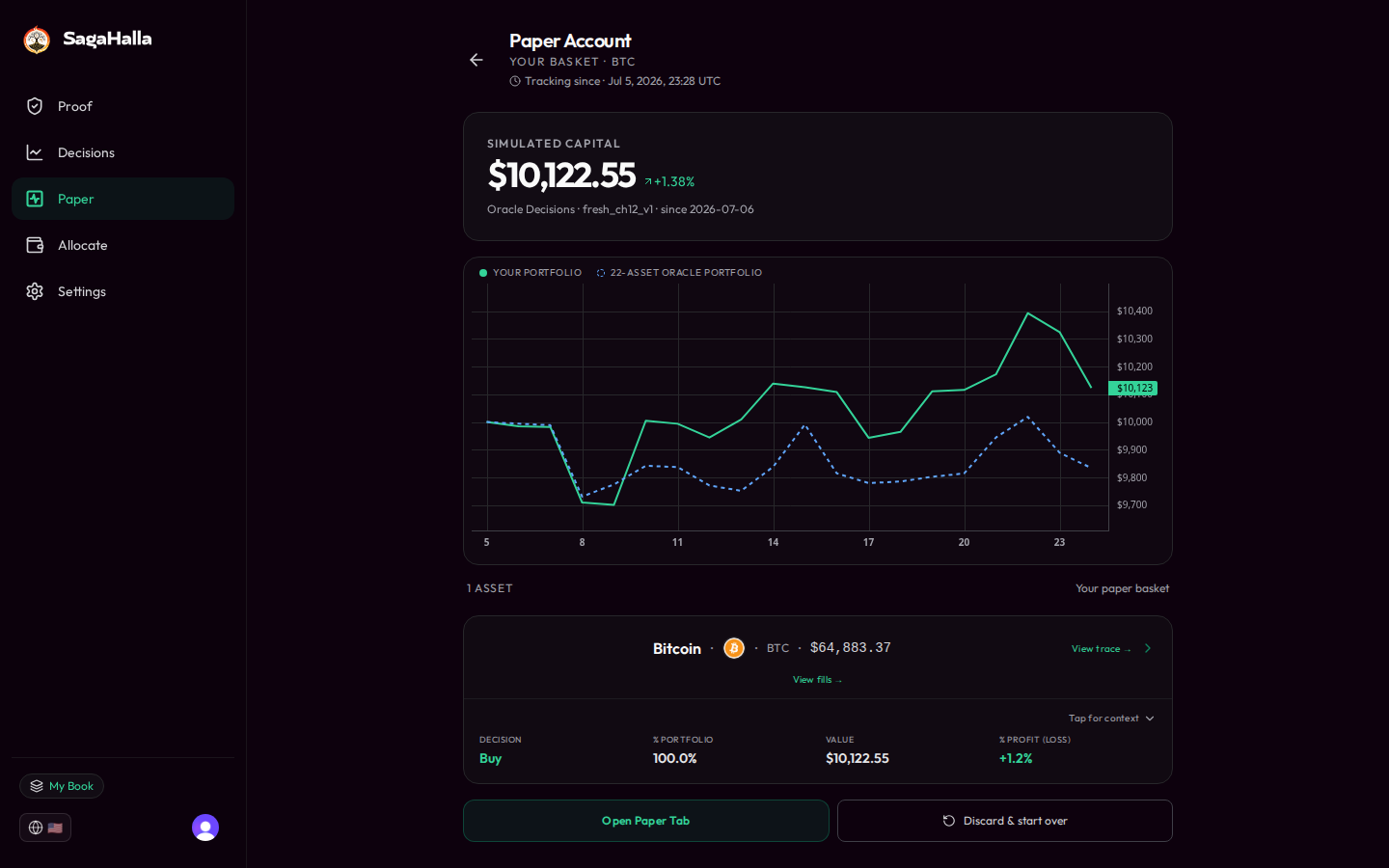
Portfolio — sim basket or connected book; BookSwitcher is in the Portfolio scope panel, not the sidebar footer.
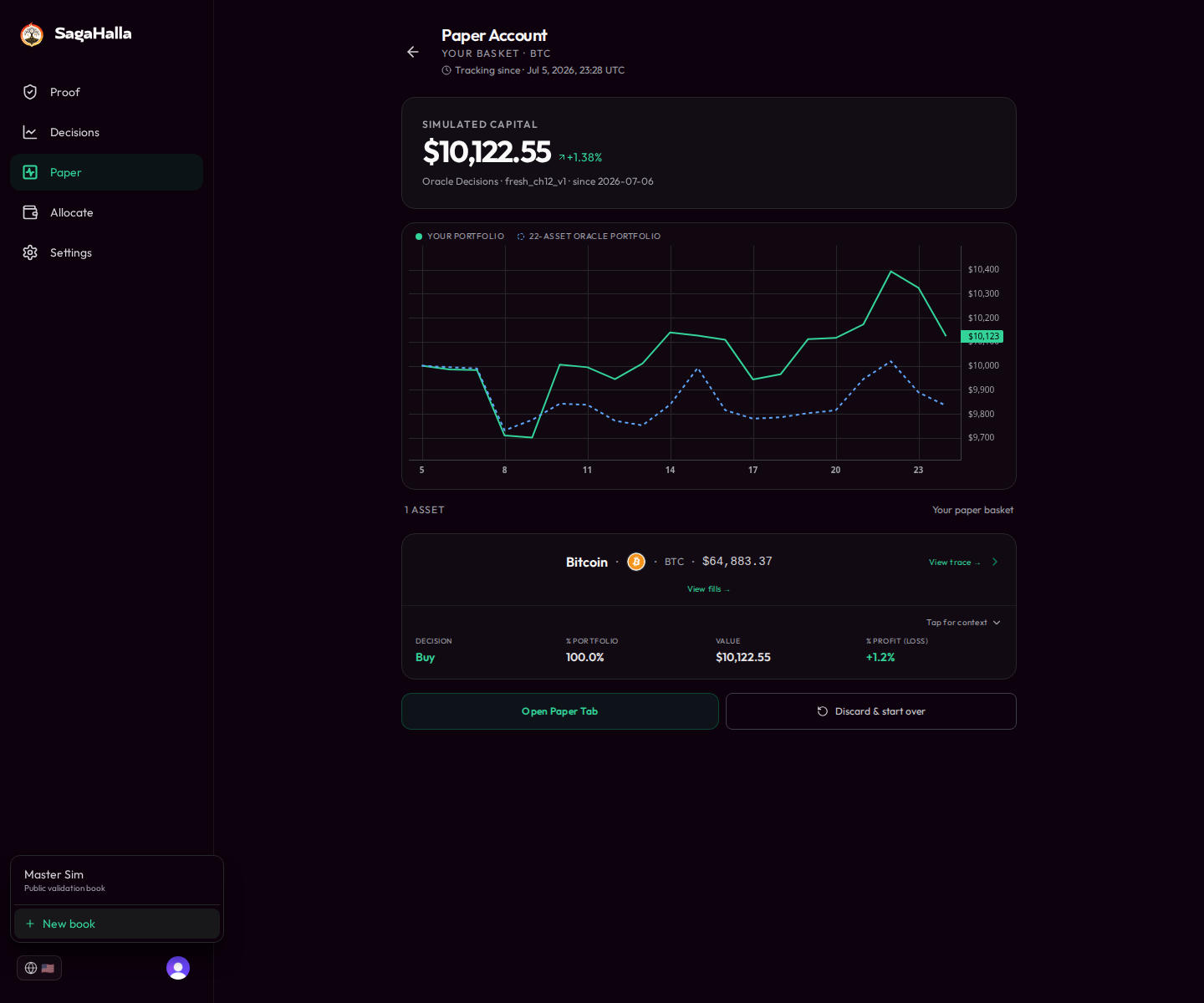
BookSwitcher — choose Your basket (sim; no vault) or a customer book (one venue each).
- Portfolio scope panel at top of Portfolio
- Your basket = sim / Compose track
- Create a customer book via Settings → Connect brokerage; switch it on Portfolio before Allocate arming
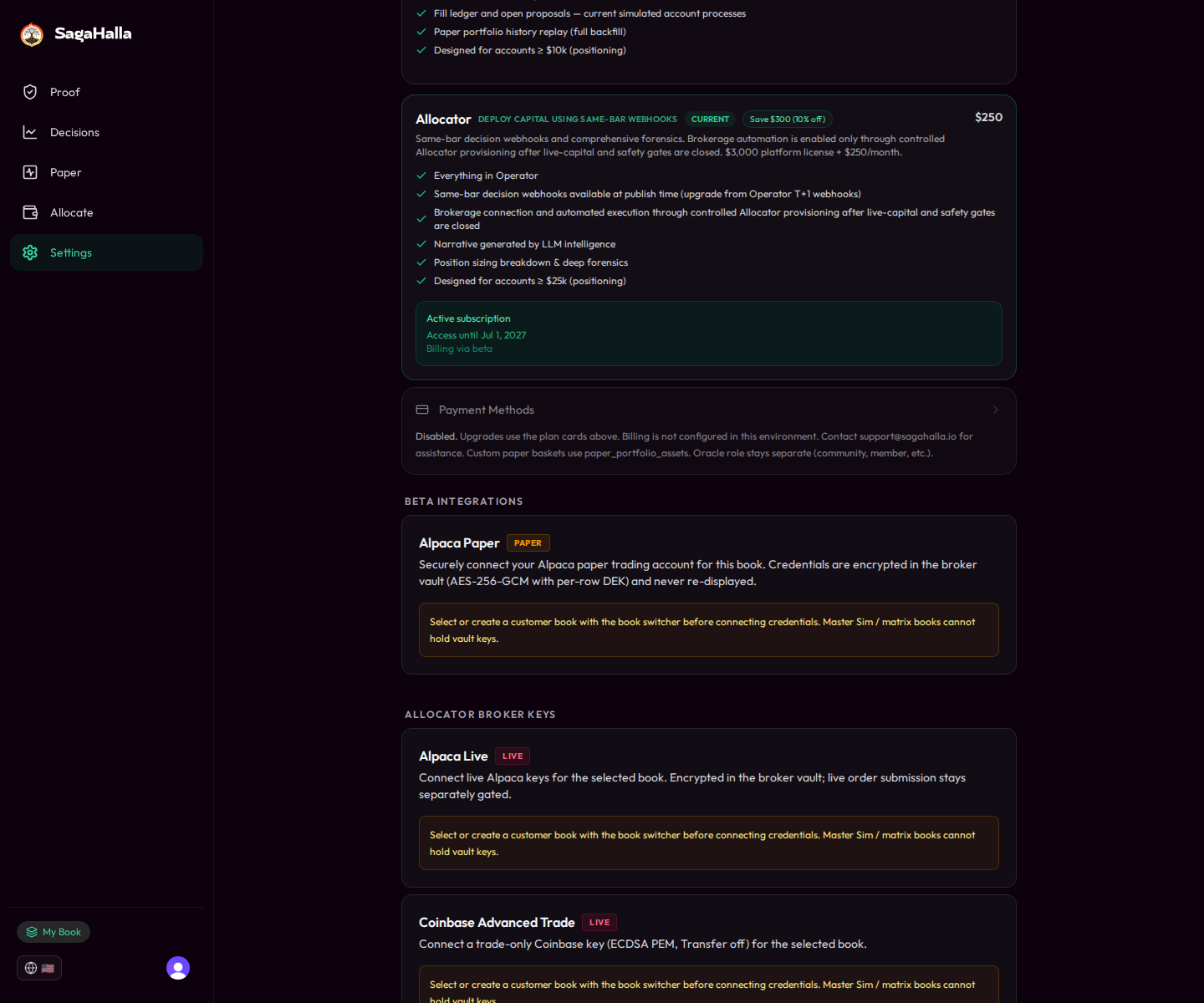
Settings → Connect brokerage — Alpaca or Coinbase keys create and bind the book; reconnect under Your books. Paper/sandbox is offered when the venue supports it.
A.10 User responsibilities & non-advisory posture
SagaHalla is a user-directed structural analytics and automation platform. You choose the instruments, rules, thresholds, sizing, exposure limits, and execution permissions. SagaHalla shows you structural analytics and, when you configure and enable it, alerts you or acts only on the permissions you authorized.
SagaHalla is not:
- a robo-adviser, discretionary manager, or managed account;
- a source of personalized investment advice, suitability determinations, or recommendations for your specific circumstances;
- a broker-dealer, and it does not custody your assets.
Nothing SagaHalla displays is a recommendation to buy, sell, or hold any instrument. Decisions and signals are general structural analytics for supported instruments.
What SagaHalla does not guarantee. SagaHalla does not guarantee, and you should not rely on:
- profits, returns, or protection against loss;
- order fills, fill prices, or freedom from slippage;
- data accuracy, completeness, or continuous availability (uptime);
- suitability of any instrument, rule, or configuration for you;
- that a signal, decision, or automation will behave as expected in any given market condition.
You are responsible for your own trading decisions and for the configuration you choose. Connecting a brokerage or webhook alone does not start trading — live routing has additional explicit gates.
In addition, you are responsible for:
- Keeping API keys, webhook secrets, and account identifiers private
- Using the product within the entitlements and disclosures shown in-app
- Not representing SagaHalla output as personalized advice to others
In product terms, also assume:
| Area | Not guaranteed |
|---|---|
| Markets / decisions | Completeness for every instrument every day; uninterrupted publish cadence |
| Webhooks | Instant delivery; zero duplicates; zero retries; broker fill quality |
| Paper ledger | Identity with any live broker’s fills or your personal P&L |
| Brokerage automation (Allocator) | Fills, prices, or outcomes; connecting keys alone never starts live trading |
A.11 Disclosures & acknowledgments (overview)
Depending on what you enable, the app may require you to acknowledge:
| Acknowledgment | When it appears |
|---|---|
| Paper / sandbox first-run disclosure | Early sessions for paper evaluation |
| Webhook general acknowledgment | Before creating / using decision webhooks |
| Webhook use-and-risk (execution-oriented formats) | Before enabling TradingView-compatible / execution-ready formats |
| Standing Instruction acknowledgment | Before leaving Manual Review for advanced automation (Allocator) |
| Broker / live-submission confirmations | Before storing live keys or enabling live submission intent |
Always read the in-app acknowledgment text at the time of acceptance — that wording is authoritative.
A.12 Support expectations
| Channel | Use for |
|---|---|
| Settings → Send Feedback | In-app bugs, confusion, product feedback |
| support@sagahalla.io | Access, billing, entitlement, or issues you cannot file in-app |
Support helps with product access, entitlement mismatches, and clarifying how surfaces work. Support is not:
- investment advice or trade coaching;
- a discretionary manager of your account;
- a guarantee of response times suitable for time-critical trading.
Support response times are not guaranteed for time-critical trading decisions.
A.13 Getting started (sign-in, first session)
- Sign in at app.sagahalla.com (or via the Sign in link on the marketing site). Use the email associated with your account or invite.
- Install on your home screen (recommended) — add the app as a PWA so it opens like a native app (especially useful for push on iOS):
| Device | Steps |
|---|---|
| iPhone / iPad (Safari) | Open app.sagahalla.com → Share → Add to Home Screen → Add |
| Android (Chrome) | Open app.sagahalla.com → menu (⋮) → Install app / Add to Home screen |
Use Safari on iOS (other browsers often cannot add a PWA). Desktop browsers may offer an install icon in the address bar; that is optional.
- Read first-run disclosures (paper / sandbox boundaries) before exploring.
- Open Oracle Proof — confirm you can read the headline validation-book metrics and freshness.
- Open a decision — from Oracle Proof or
/decisions, pick any item and find the explainability trace. - Open Portfolio — select Your basket or a customer book in the scope panel; understand sim vs connected book behavior.
- Visit Settings — support, push notifications, brokerage keys; Allocator (and integrator-pilot seats) see webhooks when entitled. Paid plans are on sagahalla.com/account.
A timing notice in the app tells you which closed bar you are seeing. If something looks stale or blocked, pause and contact support rather than assuming the last value is current.